
Review & troubleshooting
A reminder shows the wrong date or time
Locate the source of the detail before rewriting the message.
By LoopLily · 1 min read
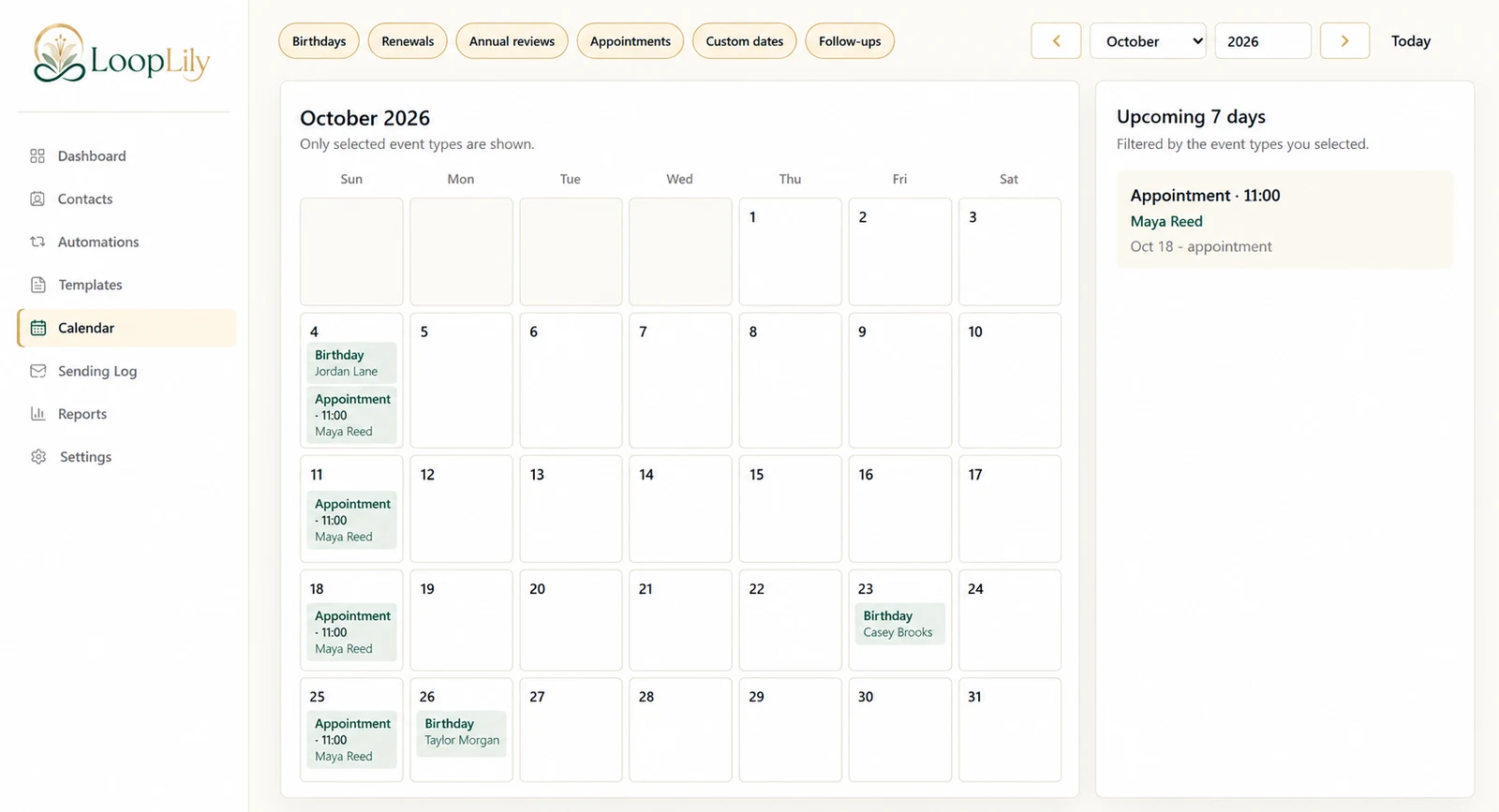
Read the sentence and field
Check whether the template uses a scheduled-date field, a renewal-date field, or manually typed text. A date copied directly into a reusable body can become stale even when the contact record is correct. Choose the supported field that matches the intended meaning.
Inspect the saved event
Open the relevant contact information and compare the date and time with your actual booking or business record. Review the timezone and distinguish the event time from the email send time. Do not alter several settings just to make one screenshot look right.
Review prior communication
If the incorrect reminder already went out, changing the template does not update the recipient’s existing email. Inspect the Sending Log and consider a clear personal correction. Then preview the revised content and verify the source record separately. A complete fix addresses both the future workflow and any confusion created by the message that was already received.