
Getting started
Preview a message before your first send
Use an inbox preview to check what the recipient will actually read.
By LoopLily · 1 min read
Read beyond the card artwork
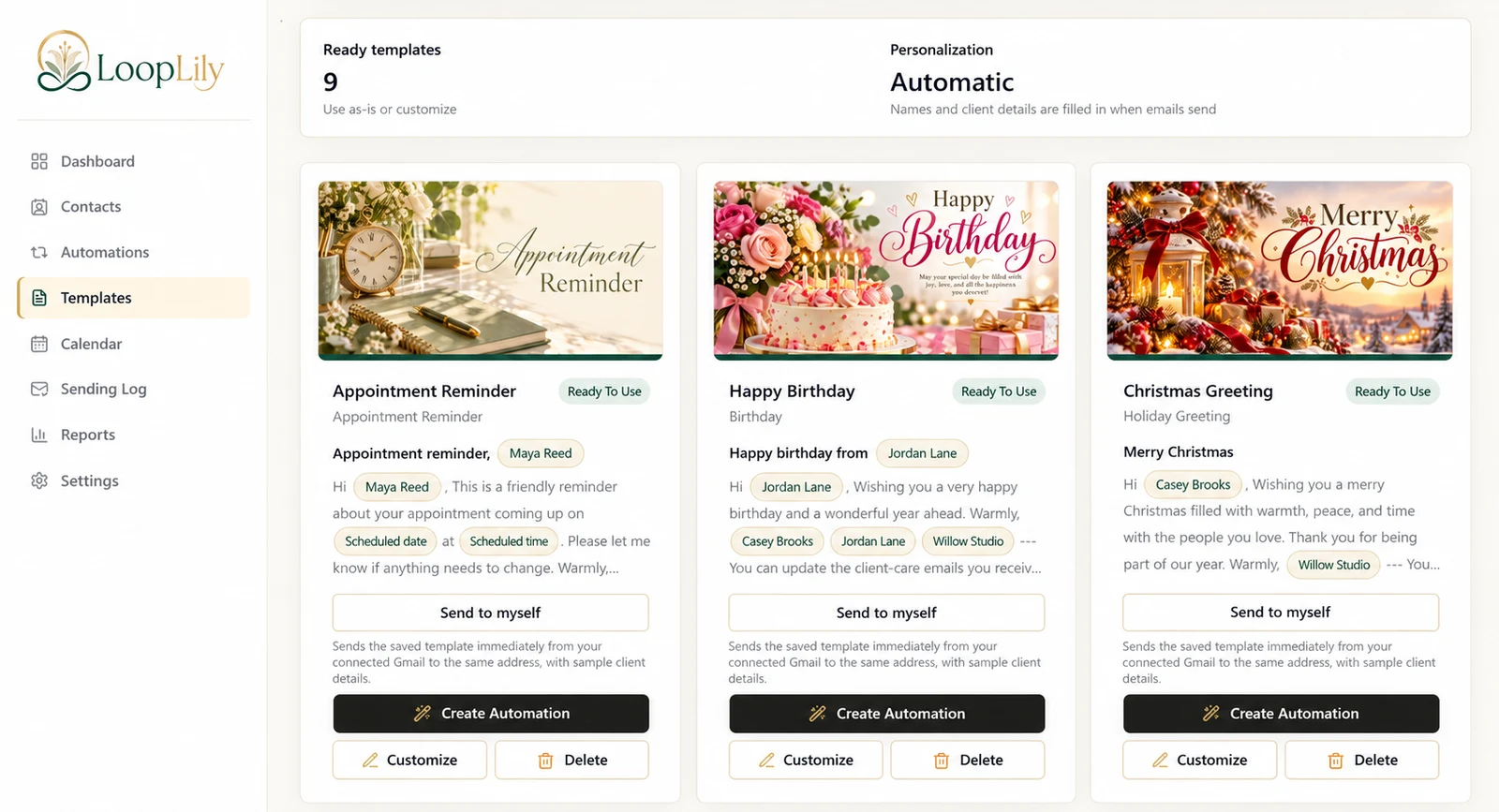
An attractive image can draw attention, but the subject and body carry the practical meaning. Check spelling, the greeting, the sign-off, and any dates or times. A reminder should remain understandable when images are not immediately visible in the reader’s email client.
Understand the preview’s limits
The Templates screen offers Send to myself for a saved template through the connected Gmail account. Preview messages use sample client details. That helps you inspect presentation, but it does not prove that a live contact’s information or an automation’s audience is correct.
Use two separate checks
First review the preview on a phone and a larger screen. Then inspect the real contact fields and automation settings separately. For example, seeing a sample name in a polished appointment email does not confirm Maya’s appointment date. Treat the preview as a content check, and use records, scheduling settings, and later sending history to verify the rest.